 COME
COMECOME APK Version and Size: What to Compare
A version label describes a release; a size label describes a file listing. Use both as comparison points, then check the download source and the installed app separately.
Start with three separate records
Keep the web listing, the downloaded file and the installed application separate in your notes. A web page can change before you download, and an old file can remain in Downloads after the app has been updated.
- Listing: record the version and the date you checked it.
- File: note its name, completed download time and displayed size.
- Installed app: read the version in its details when the device exposes it.
Use the update control in context
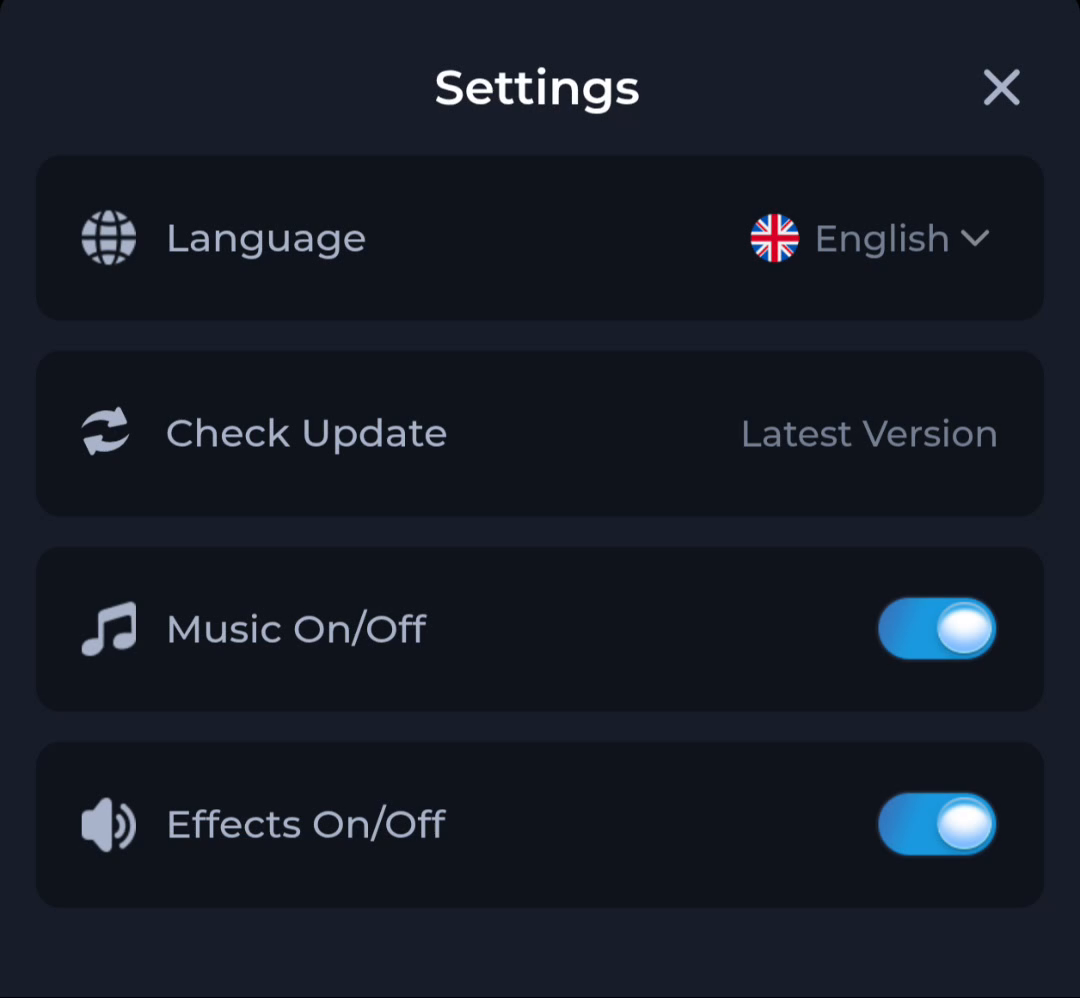
The pictured Settings menu includes Check Update. The words Latest Version are a status label, not a release number. Compare any number shown in your own app with the release offered on the destination page before deciding to update.
When the labels differ
A larger number in a filename is not enough to identify a release. Stop if the source is unexpected or the installer presents a different app. A small difference between a rounded size label and the file manager display needs explanation, but matching sizes alone cannot verify a file.
- Reopen the download page you intended to use.
- Check whether a new release or a different file is being offered.
- Keep the existing installation while you resolve the mismatch.
Do you need a new download every time?
No. First establish what is already installed and what the update page is offering. Repeated downloads can leave several similarly named files without telling you which one is current. Record the result of the comparison before continuing.
Continue with the right guide
Choose another topic in Guides, or return to the main steps when you are ready.