 COME
COMECheck a COME Update Without Removing the Existing App
Start with the existing installation. Record its version and check the update route before considering a reinstall or changing account settings.
Find the update entry
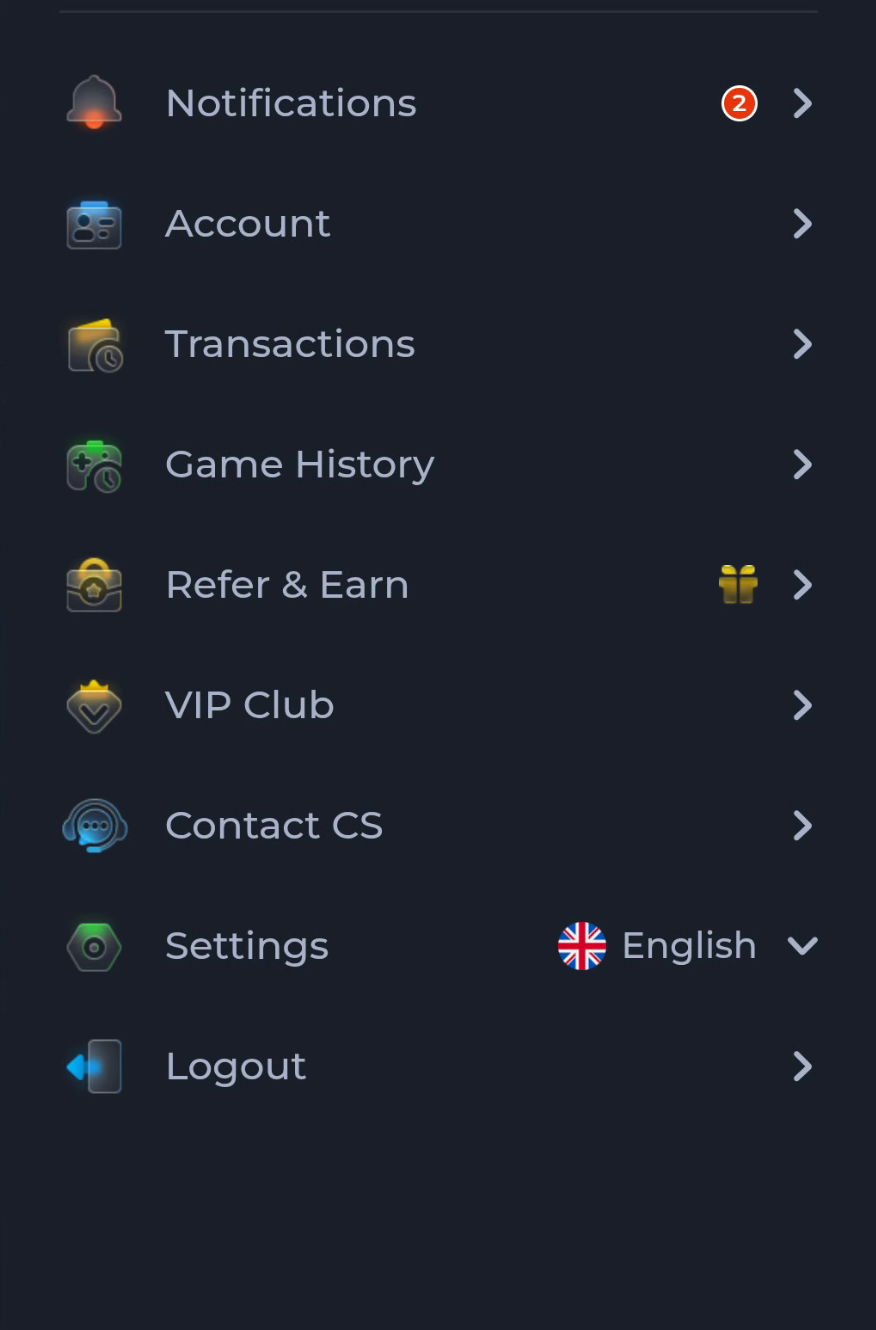
Settings appears separately from Account and Logout in the pictured menu. Opening an update control is a different task from signing out or changing account details.
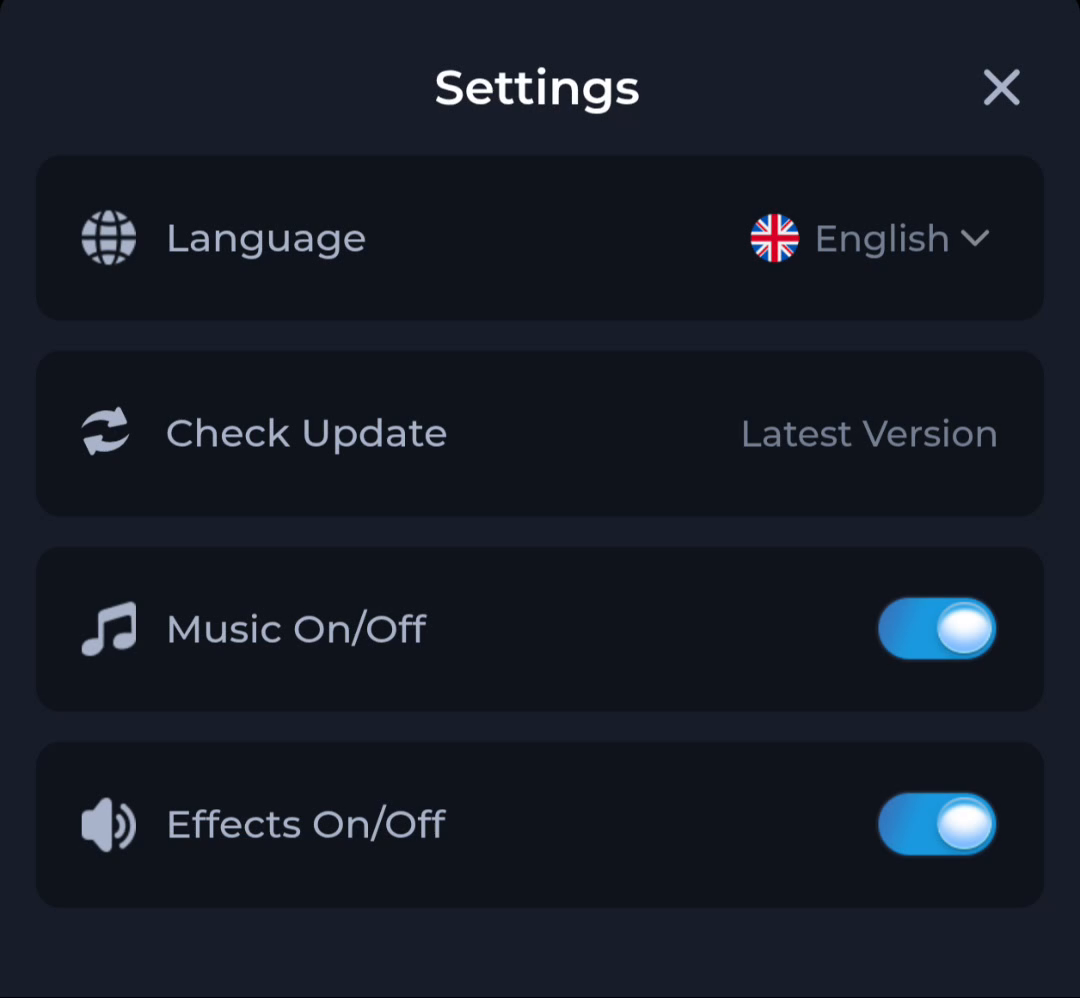
Compare before changing anything
- Open your existing app and note its current version if available.
- Use Check Update when that option appears in your interface.
- Read the offered release information and any instructions on the destination page.
- Continue only when the app identity and update route make sense.
Preserve access to your account
Confirm you know your sign-in method before installing an update. Do not clear app data or uninstall as a first response to a vague error. Those actions can remove local settings and may require you to sign in again.
Handle an update that will not install
Note the exact installer message and whether the transfer completed. A conflict, a compatibility problem and an incomplete file need different responses. Keep the existing app intact while checking the message and the release details; do not force an older file over a newer installation.
What counts as completion?
An update is complete only after the installer finishes and the app opens as expected. A web page saying latest or a finished browser download is an earlier step. Compare the installed version again after opening the app.
Continue with the right guide
Choose another topic in Guides, or return to the main steps when you are ready.